
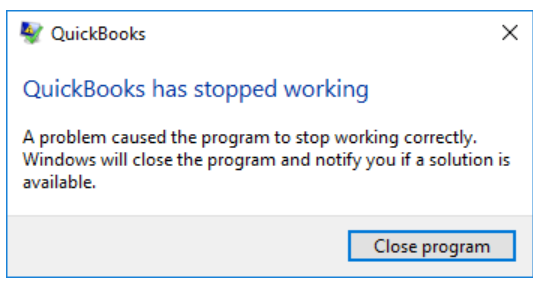

“The QuickBooks application has stopped working error can occur due to underlying issues with the system, the application itself, or the data file. To resolve this, the best solution is to run Quick Fix my Program from the QuickBooks Tool Hub to resolve application-related issues. If the company file is corrupted, use a professional QuickBooks repair tool to repair the file in any state.”
Users often face the “QuickBooks has stopped working” error, when opening the application or company file. Such an issue can also occur while performing tasks on the company file, like running reports, estimates, etc. or after installing the updates.
This error can disrupt your workflow. In this article, we will look at the likely causes behind the QuickBooks has stopped working error and see how to resolve it.
Causes of QuickBooks has Stopped Working Error
Let’s take a look at the most obvious and common reasons responsible for the QuickBooks has stopped working error.
- Name of the company file is too long
- Damaged or missing QBWUSER.INI file
- Issues on system’s hard drive where QuickBooks installation files and data files are saved
- QuickBooks Desktop installation files are damaged
- Corrupted or damaged QuickBooks company file
Solutions to Resolve QuickBooks has Stopped Working Error
If conflicting QuickBooks processes in the background have caused the QuickBooks has stopped working issue, then you can try closing them using the Task Manager on your system. If the issue persists, then follow the below troubleshooting solutions.
Method 1: Use the QuickBooks Tool Hub
You can face the QuickBooks has stopped working issue due to corrupted or damaged program files. To resolve the issues, you can download and install the most recent version of QuickBooks Tool Hub and then run its repair tools to resolve the program and installation issues. To use the Quick Fix my Program tool from the QuickBooks Tool Hub, follow the steps given below:
- In QuickBooks Tool Hub, click Program Problems.
- Click Quick Fix my Program.
- Then, start your QuickBooks Desktop application.
If the issue still appears, then run the QuickBooks Install Diagnostics tool by using the following steps:
- On the Tool Hub, click Program Problems.
- Click QuickBooks Program Diagnostic Tool. It may take some time.
- Once the tool completes the process, restart your system and launch your QuickBooks application.
This tool helps in resolving issues with Microsoft components that are required for the functioning of QuickBooks application.
Method 2: Rename QBWUSER.ini File
The QBWUSER.ini file contains the user-specific settings and application-related initialization files. QuickBooks reads this file while opening. If it fails to access this file due to corruption, it can lead to QuickBooks has stopped working error. To resolve this, you can reset this file by following the steps given below:
- Go to the folder where the QBWUSER.ini file is located. You can follow this path: C:\Users\[Your user name]AppDataLocalIntuitQuickBooks [year].
- Right-click on the ini file and click Rename.
Note: Renaming the QBWUSER.ini file will delete the list of previously opened QBW files.
- Add .old at the end of the file name. This will recreate the QBWUSER.ini file.
Method 3: Check and Update QuickBooks Application
The QuickBooks application has stopped working error can also occur if the version of QuickBooks Desktop application is outdated. You can press F2/Ctrl+1 to open the Product Information window to check if the QuickBooks application is updated. If it is not updated, then click Update available and select Install Now to install the updates.
Method 4: Check and Repair the Company File
Sometimes, the lengthy name of company file can cause such an issue. You can check and rename the company file with a shorter name, if it is more than 35 characters long. Also, make sure you have all the permissions on the company file folder. If corruption in the QuickBooks Company (QBW) file is the reason why you’re unable to open QuickBooks, then you can repair it by using the File Doctor tool. Here’s how to use it:
- On the QuickBooks Tool Hub, click Company File Issues.
- Click Quick Fix my File.
- The tool will start repairing the company file.
- When the process is completed, click
Now, try to open the company file. If you fail to open it, then use the QuickBooks File Doctor tool. Here are the steps:
- In QuickBooks Tool Hub, click Company File Issues and then click Run QuickBooks File Doctor.
- In the QuickBooks File Doctorwindow, select the company file.
- It will prompt you to enter the QuickBooks Admin password. Enter the password and then click
It may take some time, depending on your company file size. Once the scan is complete, try to open your QuickBooks. The tool can help you repair minor corruption issues in QuickBooks company file of less than 1.5 GB size.
If it fails to repair the company file, this means it is severely corrupted. In such a case, you can take the help of a reliable QuickBooks repair tool, like Stellar Repair for QuickBooks. This tool doesn’t rely on admin credentials and can easily repair highly corrupted QuickBooks company (QBW) files. It can restore all the file components with complete integrity. The tool supports company files of all QuickBooks versions.
Conclusion
QuickBooks can throw the error “QuickBooks has stopped running” when you try to open the application or company file. Many reasons might be responsible for such an error. You can follow the solutions mentioned in this post to resolve the issue. In case the issue is caused by a corrupt QBW file, use a dedicated QuickBooks repair software, such as Stellar Repair for QuickBooks, to effectively repair the file in just a few clicks.